Downloading Comics from the IDW Comics App
I bought a key from Fanatical for a bunch of Godzilla comics without realizing I was buying a key. It has to be redeemed within the IDW Comics app and you can only read them, you aren’t supposed to be able to access the files otherwise. And that’s bullshit, so here’s how to extract downloaded files if you’re on a rooted Android device.
You do have to have a rooted phone to do this, unfortunately. I have an old phone (Pixel 2XL) that I have LineageOS flashed to. It’s an easy process to unlock your bootloader and install a new OS, like Graphene or Lineage, so if you have a spare phone you can probably do this. But uh, the juice might not be worth the squeeze at that point :)
First, you’ll need to download your comics within the IDW Comics app. There’s unfortunately no way to bulk download, but you can start multiple downloads at once. Once the downloads are complete a phone icon will show up next to the “Read” button.
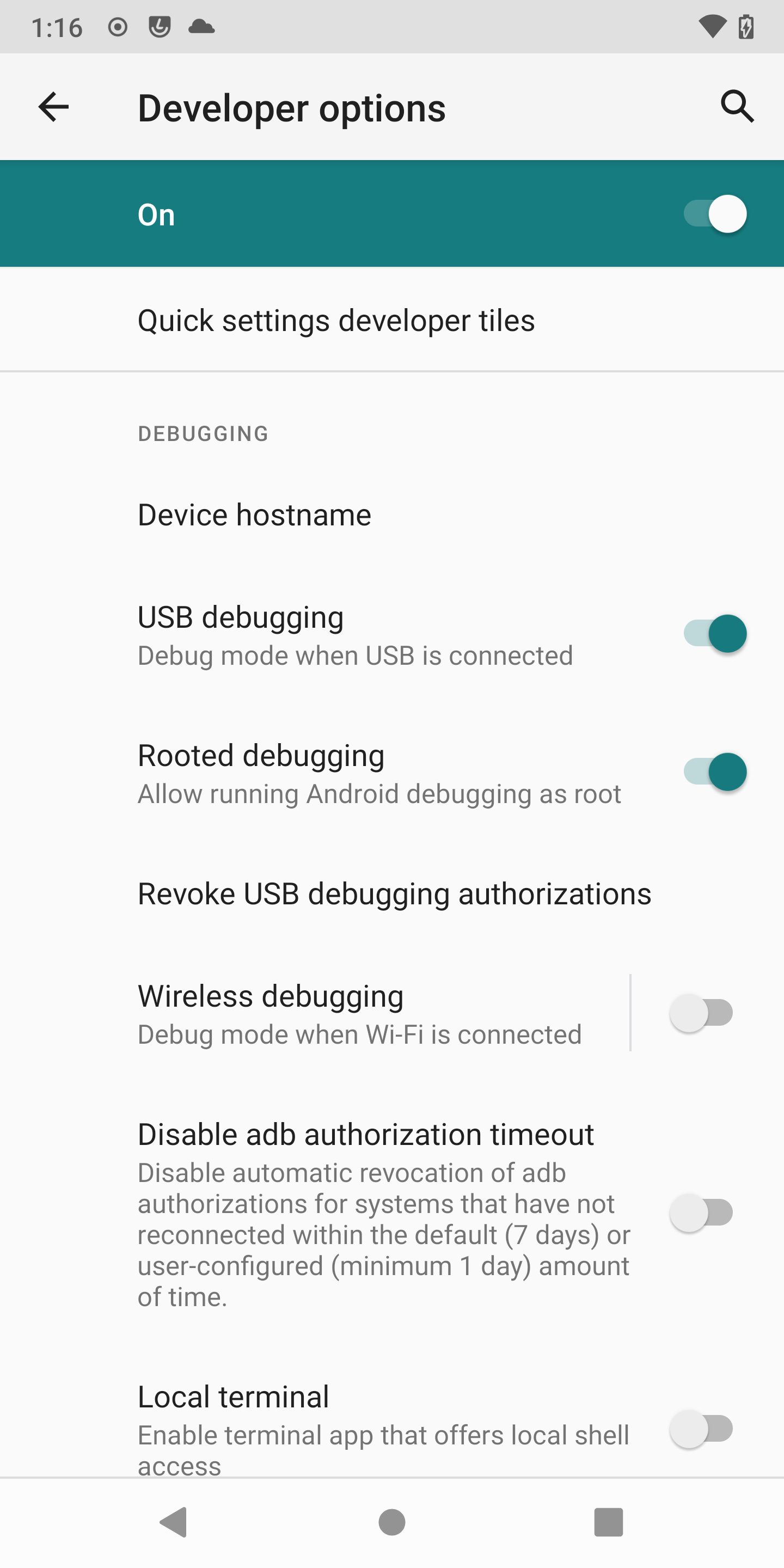
Now that you have your comics downloaded, you need to enable developer tools by tapping on Build number 7 times (Settings > About Phone > Build Number). From there, you can navigate to System > Developer options > Debugging where you need to enable USB debugging AND Rooted debugging.
Next you’ll need to download adb, which you can do from here. If the link is dead, you should be able to search “adb download” and make sure it’s from an official place (like developer.android.com). This is just an exe, so there should be no install necessary. You will need to extract the zip, though.
I’m using PowerShell to do this, so my screenshots and commands will be based on that.
-
Open PowerShell
-
CD to your extracted
platform-toolsfolder
-
You will likely need to run
.\adb.exe attachfirst, and then you’ll get a prompt on your phone to allow the connection.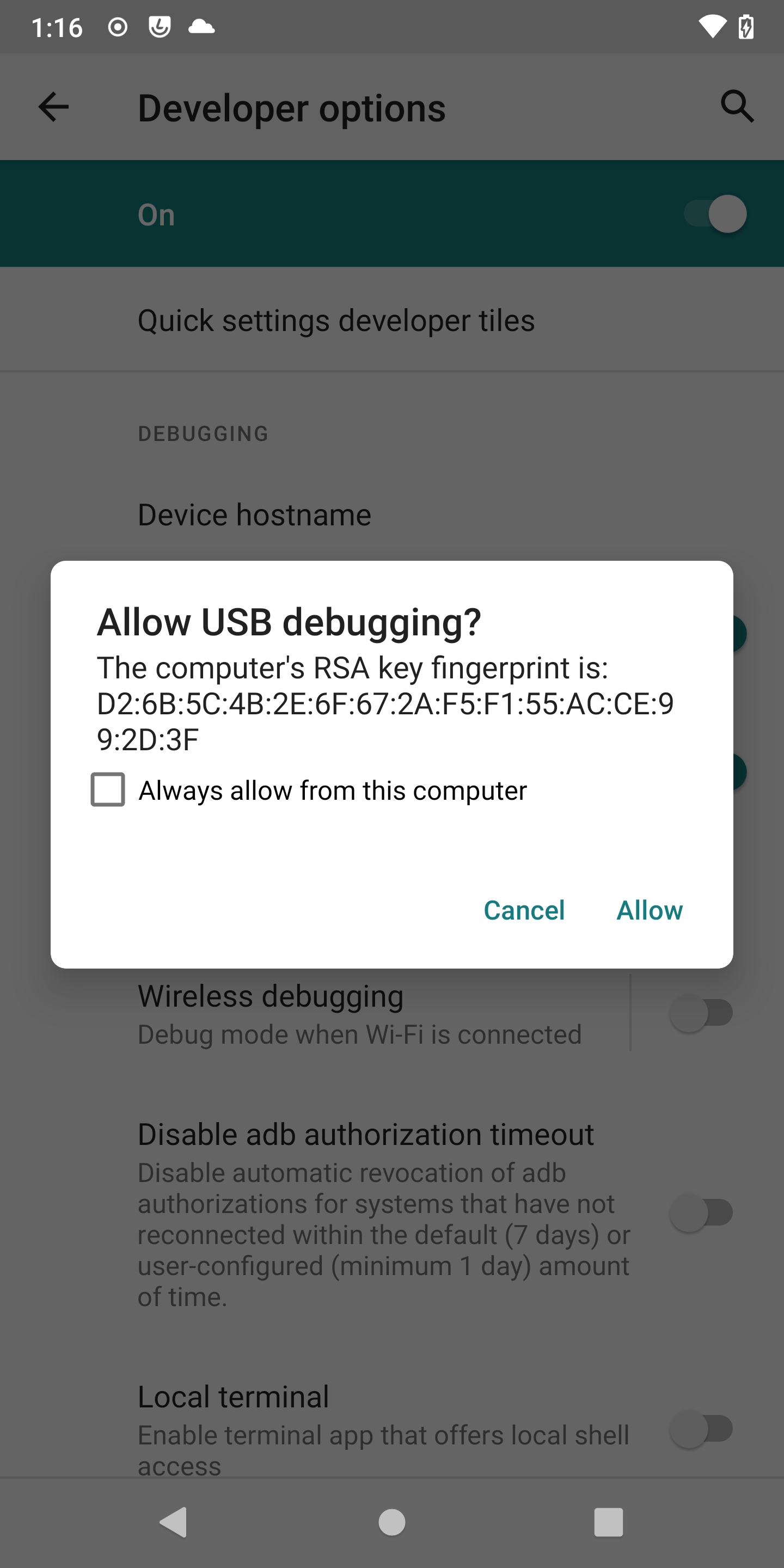
-
You can confirm connection to your phone by running
.\adb.exe devices
-
Then you’ll need to elevate to root by running
.\adb.exe root, if you clicked “Always allow” on the prompt before, you won’t be prompted on your phone again, if not you’ll need to hit allow again.
-
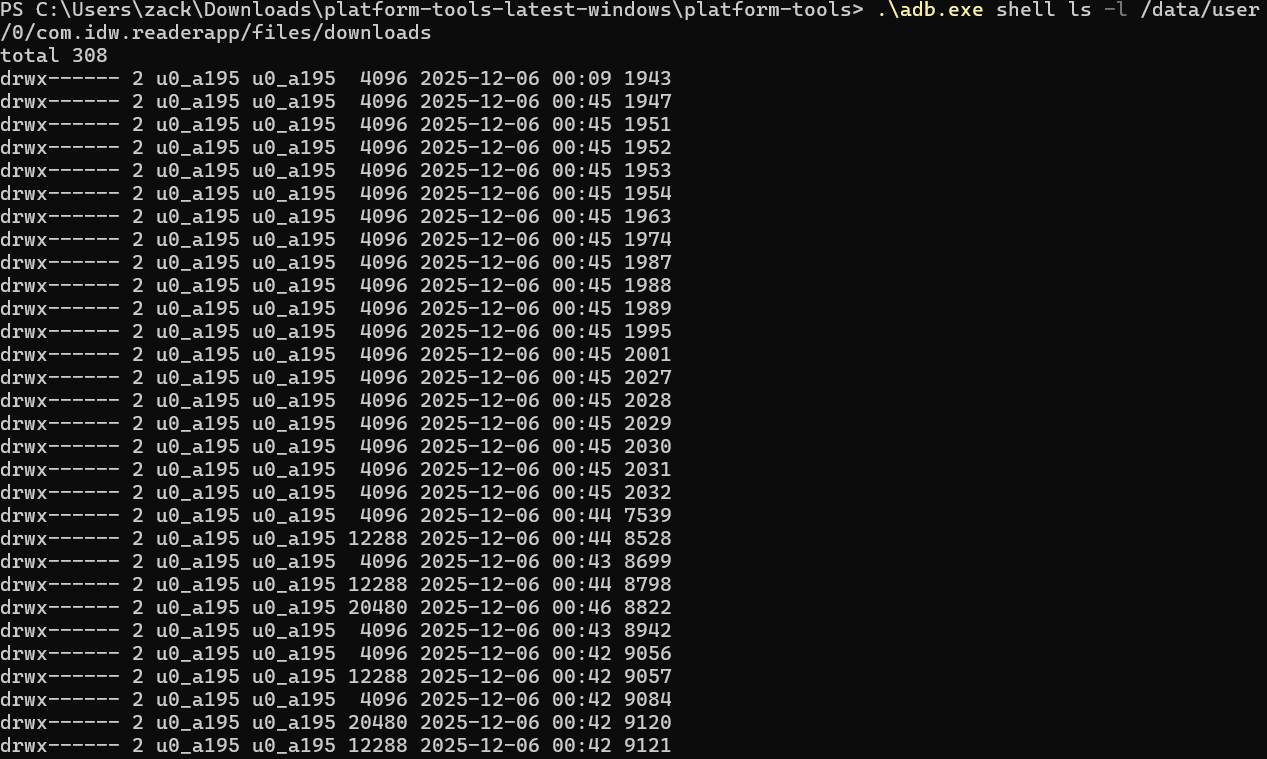
To confirm your downloaded files, you can run:
.\adb.exe shell ls -l /data/user/0/com.idw.readerapp/files/downloads. The path is obviously subject to change, but this is for the current app version at time of writing (6.4.0)You should see a list of folders with number names like below.
-
You’ll need to create a destination folder and copy the full path, this can be anything.
-
Run the following command to copy all the files in the downloads folder above to your newly created folder
.\adb.exe pull /data/user/0/com.idw.readerapp/files/downloads <your folder here>. Make sure to use the full path and if there are any spaces, wrap it in quotes (""). An example:.\adb.exe pull /data/user/0/com.idw.readerapp/files/downloads C:\Users\zack\Downloads\idw
Now you’ve got all the comics from your phone on your computer and you can do whatever you want with them, like you should be able to do with any purchase. Remember, if buying isn’t owning, piracy isn’t theft.
Bonus Tutorial
Getting these files to be readable in a comic app is dead easy.
Most comic readers use .cbz or .cbr files, all these are are renamed .zip and .rar respectively so to create them, all you have to do is zip the comic folder and rename it from a .zip to a .cbz and you’ll be able to read it in your comic reader of choice!
I will also add that the numbered order seems to correspond to the order shown in the app, for example 1943 is the lowest number for my comics, and that corresponds to the first comic in my list (Godzilla - Gangsters & Goliaths). I suspect the ordering inside the IDW Comics app is alphabetical using that UID.